Why you need to set up your SRUC.ac.uk account before you arrive:
Before you arrive at SRUC we want you to have set up your SRUC.ac.uk account username and password.
Your SRUC.ac.uk account gets you access to the systems and applications you need during your studies.
Having your SRUC.ac.uk account set up and working will make your arrival run more smoothly as it will enable you to log into SRUC's systems on your first day.
After you set up your account, your details will be as follows:
Please be aware that SRUC requires that student SRUC.ac.uk accounts be secured by multifactor authentiaction (MFA).
During the registration process you will be asked to set up multifactor authentication using SRUC's preferred method which is on the Microsoft Authenicator App:
Download for Google Android
Download for Apple iOS
How to Set up your SRUC.ac.uk account:
You will receive two emails from SRUC.
Registration username email: Look out for an email from registry@sruc.ac.uk with the subject “SRUC Registration Email 2026” (please keep an eye in your junk\trash email folder if it does not appear in your inbox.) The email will similar to what is shown below.
Password email: Look out for an email from ISServiceManagement@sruc.ac.uk with the subject “SRUC Registration Information" This will contain your password.
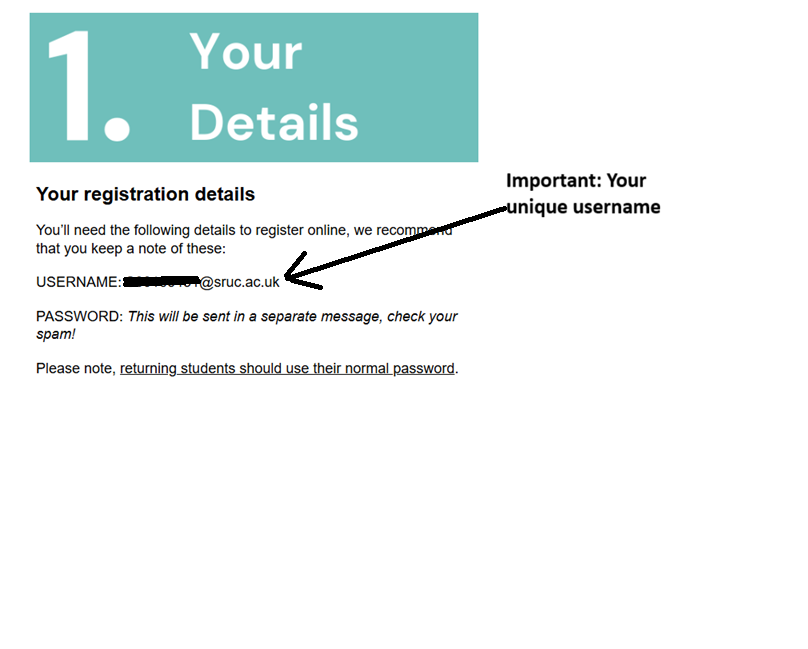 You will need your username for later steps in this process, so keep it safe and have it ready for copying.
You will now need to start the registration process by accessing the Registration Portal.
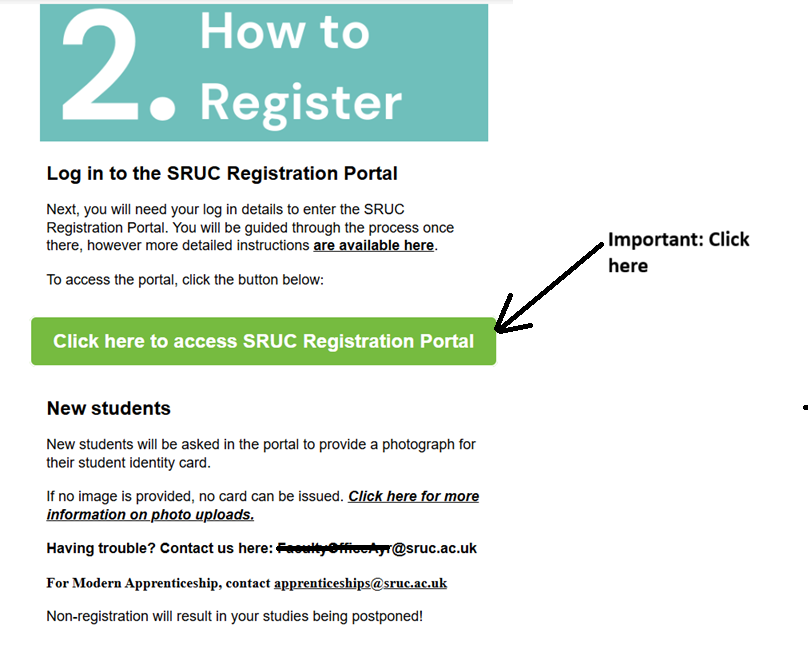
When you click on "Click here to access SRUC Registration Portal, you will see the following screen requesting your username:
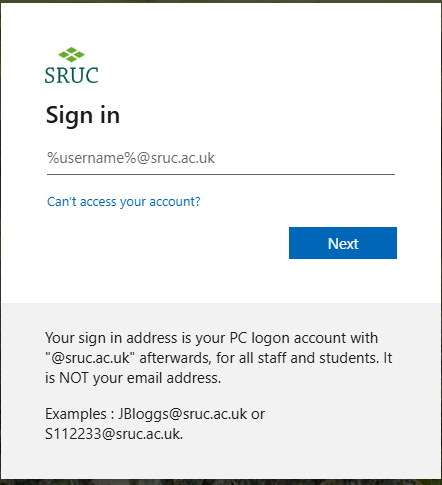
Next, enter in your @sruc.ac.uk username and password that you have received.
Once your you have entered your password, you will be asked to “Keep your account secure”. This is where you will set up your SRUC multi factor authentication (MFA). Multi factor authentication is explained in more detail here: IT Support at SRUC | Multi-factor authentication
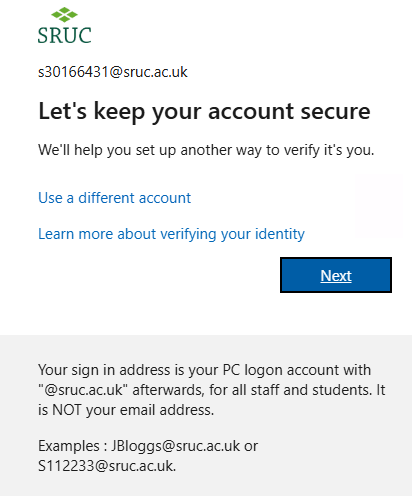
When you click “Next” you will be asked to download the app before proceeding to the next step.
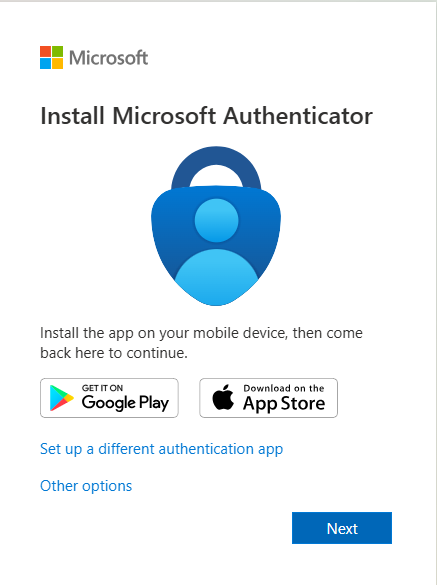
Don't proceed until you have download the Microsoft Authenticator app on your personal device.
Once the app is on your mobile device, click “Next”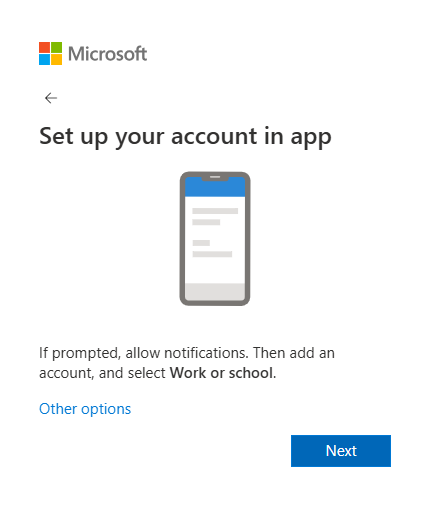
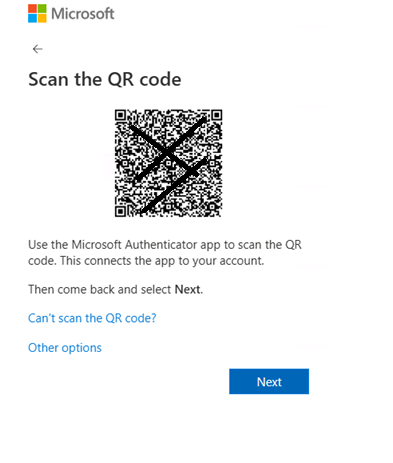
A QR code will be generated on the screen which you will need to scan using your app on your personal device.
Open the app to add a “work or school account” by pressing on the “+” button.
Point your device at the screen and scan the QR code
(The QR code on the screen guide below should not be scanned as it is only for demonstration purposes).
When you scan for the first time a you will be sent a notification to your app which asks you to enter the random number that is generated as shown below.
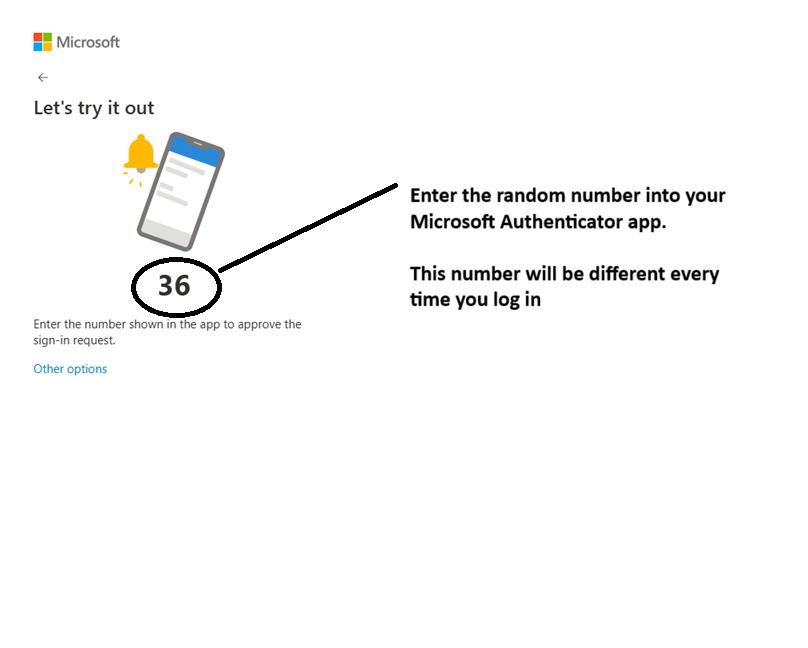 You will have 60 seconds to enter the number. If you miss the 60 second deadline, you can “request another code”
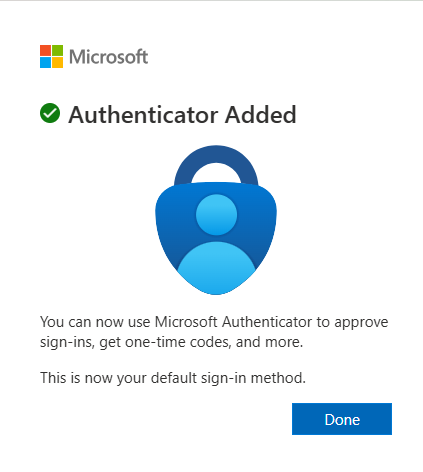
When you enter the correct code, you will see a confirmation screen. You are now fully set up with MFA.
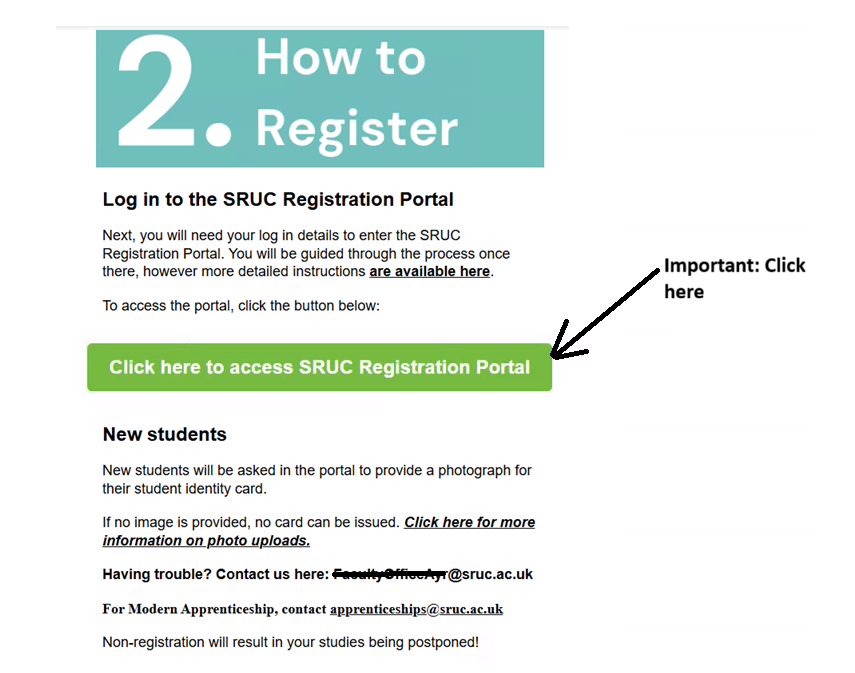
Now that MFA is set up it is time to get back to the registration process by going back to your email and clicking on “Click here to access SRUC Registration Portal”, as shown below.
If you are asked to login in again, please enter your username and password.
The Portal will look similar to what is shown below.
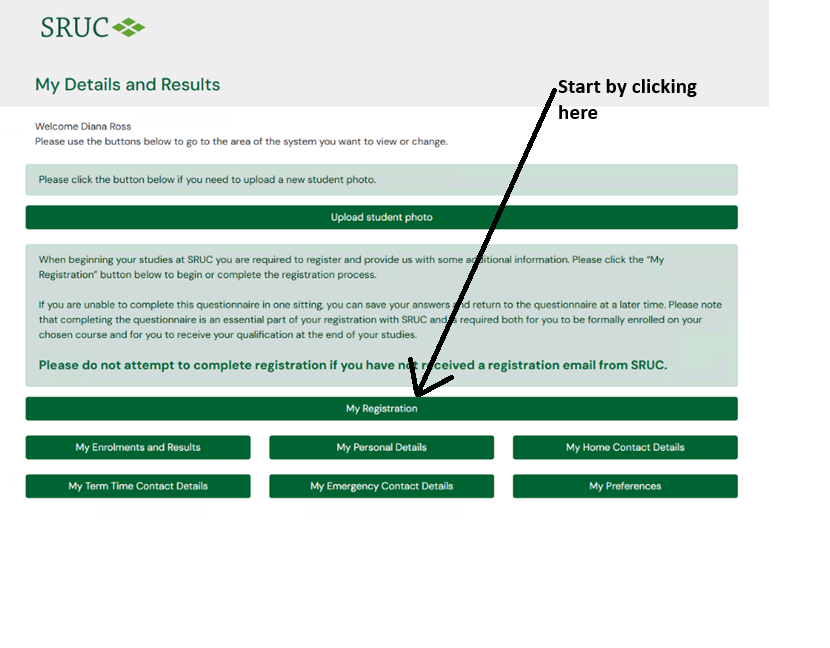
Click on “My Registration”
In the next steps of the registration process you will be presented with a number of screens that ask you to confirm that you have read and understood various SRUC policies. These policies include:
-
Declaration and Undertaking - This is a general policy which outlines how SRUC's expects students to conduct themselves during their time at SRUC
-
Data Privacy - This policy explains how and why SRUC uses, stores and deletes your personal data
-
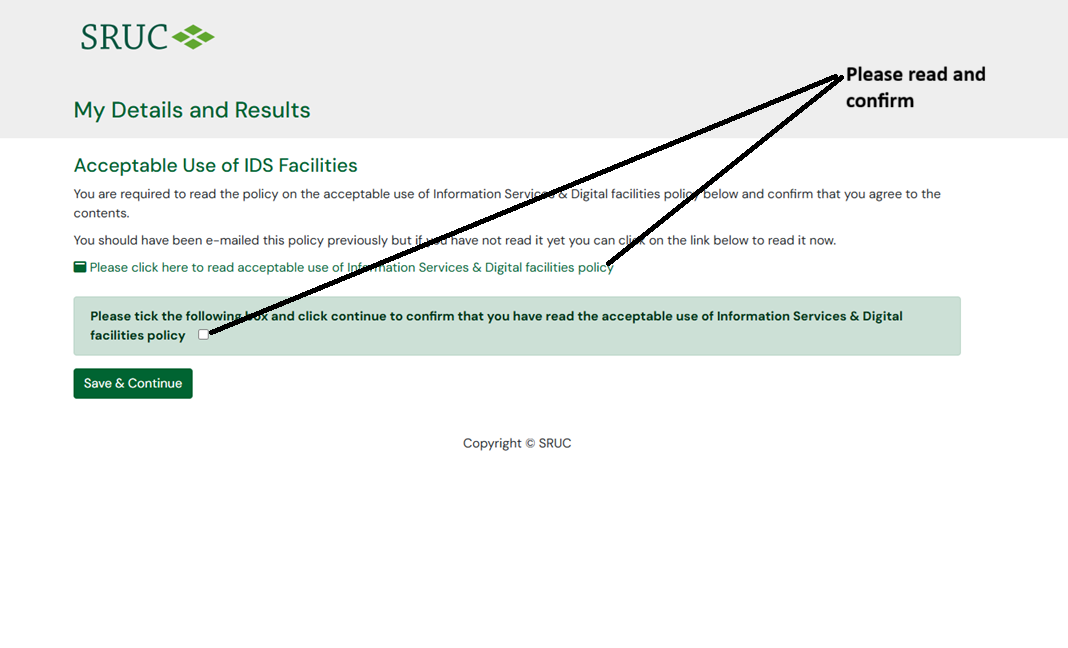
Acceptable Use of IDS Facilities - This policy explains how SRUC expects students to use IT and computing services
-
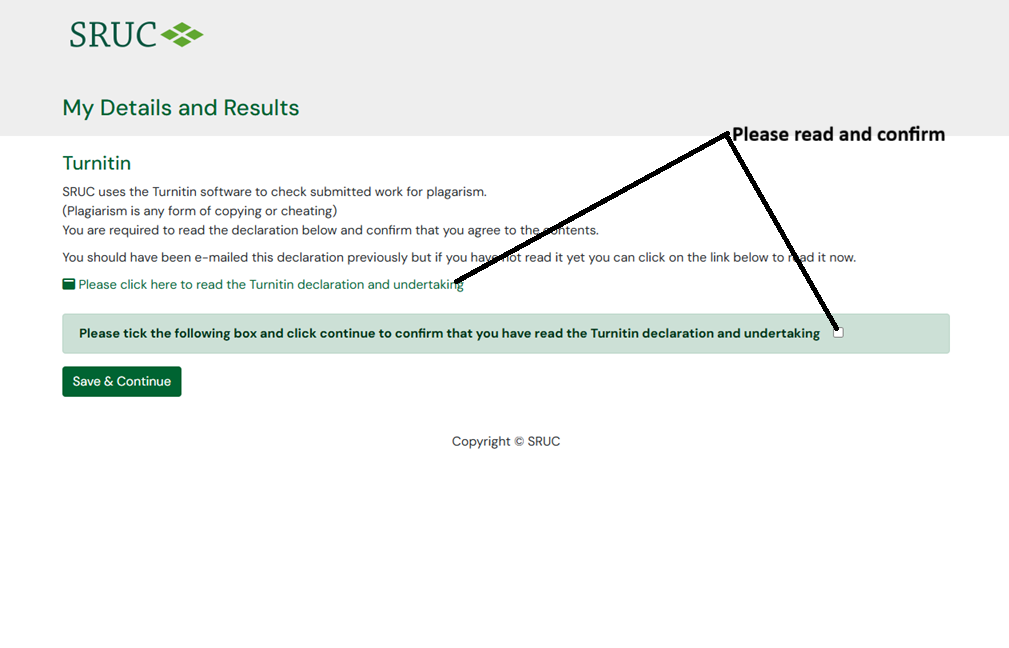
Turnitin - This policy explains how and why SRUC uses the software package called Turnitin to check student work for plagiarism
-
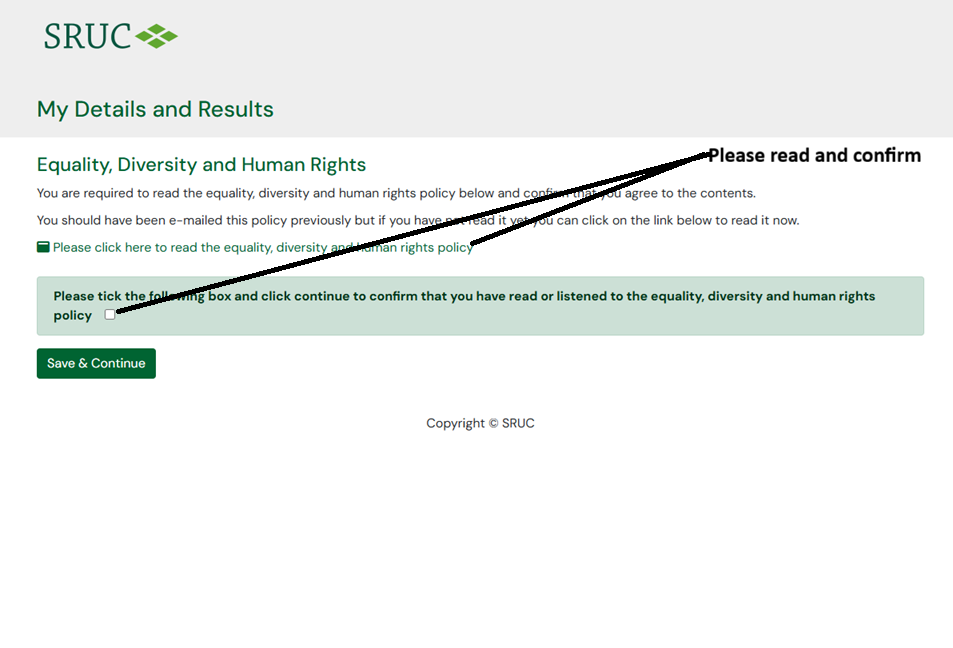
Equality, Diversity and Human Rights - This policy states how SRUC wishes to create an environment in which everyone can take part, in which no one is excluded because of difference.
-
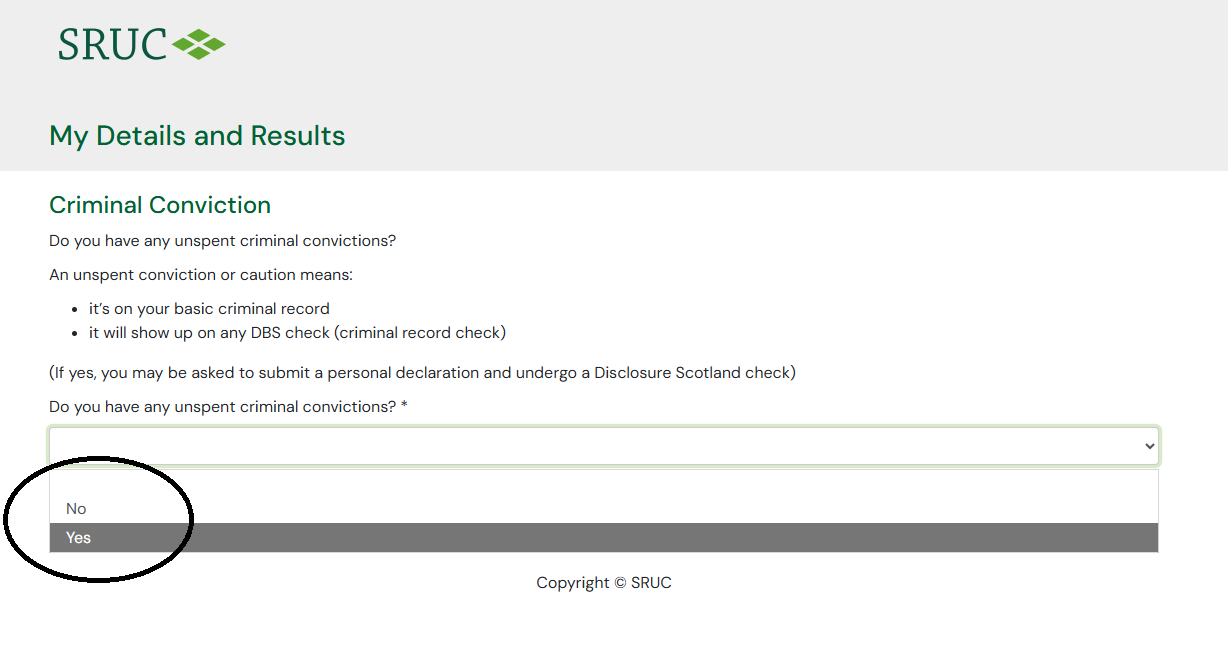
Criminal Conviction: SRUC needs to know if you have any criminal convictions
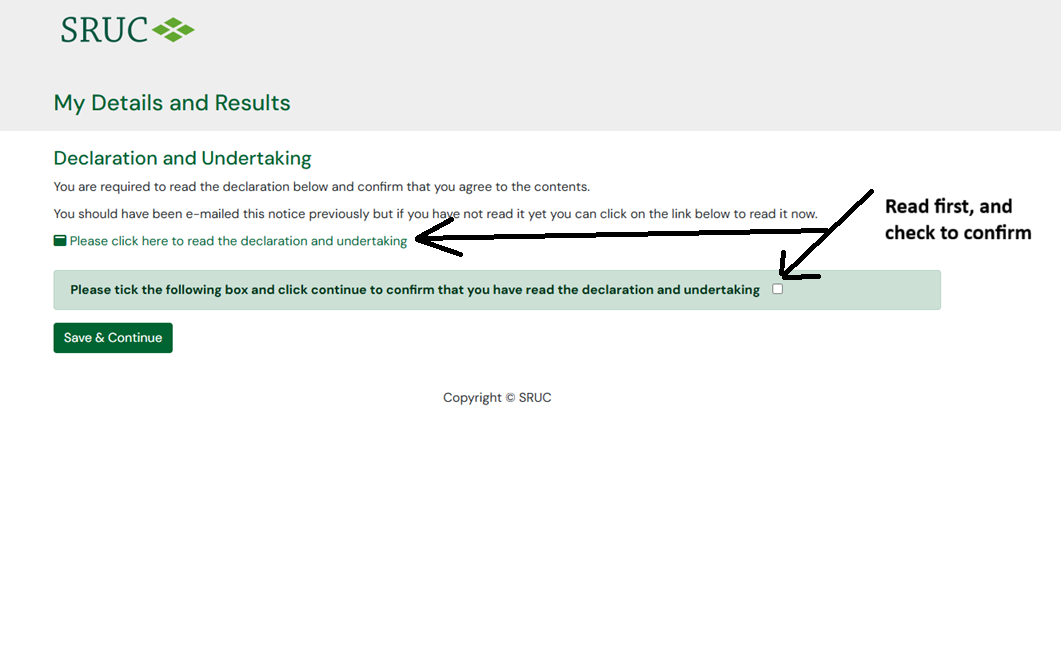
Click on “Save and Continue” to move to the next step where you will be asked to read the data privacy statement and confirm your answers.
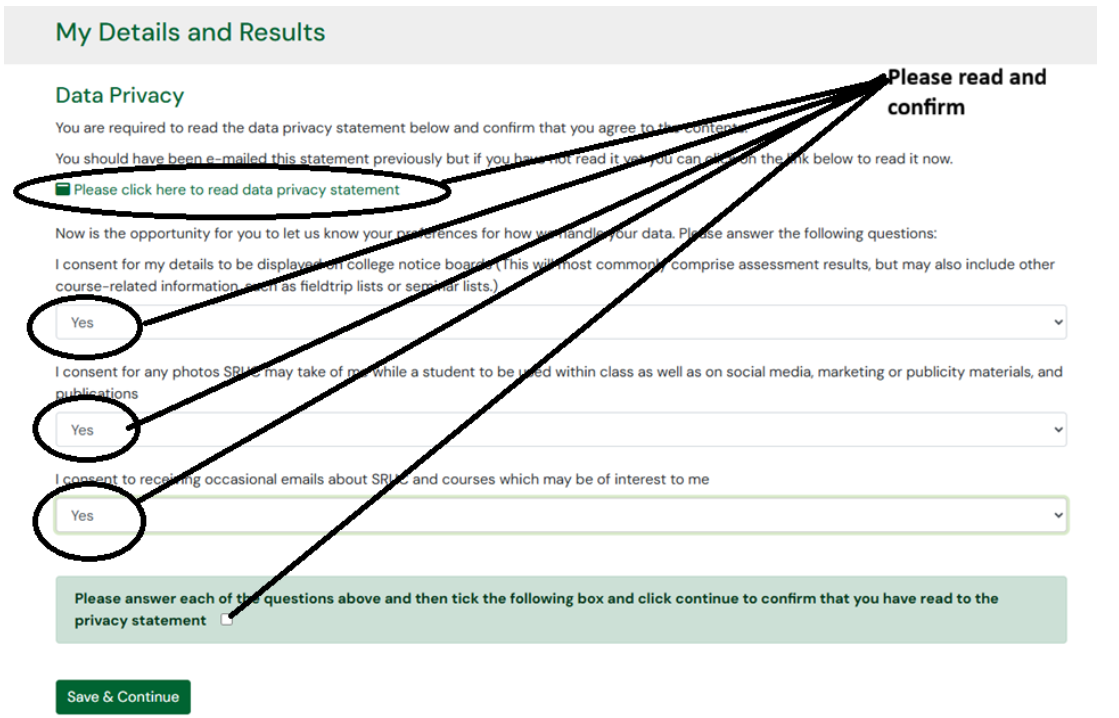
Click on “Save and Continue” to move to the next step where you can view and accept the "Acceptable Use of IDS Facilities. IDS stands for Information and Digital Services.
Click on “Save and Continue” to move to the next step where you can confirm that you have read and understood the Turnitin policy.
Click on “Save and Continue” to move to the next step where you will be asked to accept SRUC's Equality Diversity and Human Rights policy.
Click on “Save and Continue” to move to the next step where you will be asked to declare any criminal convictions.
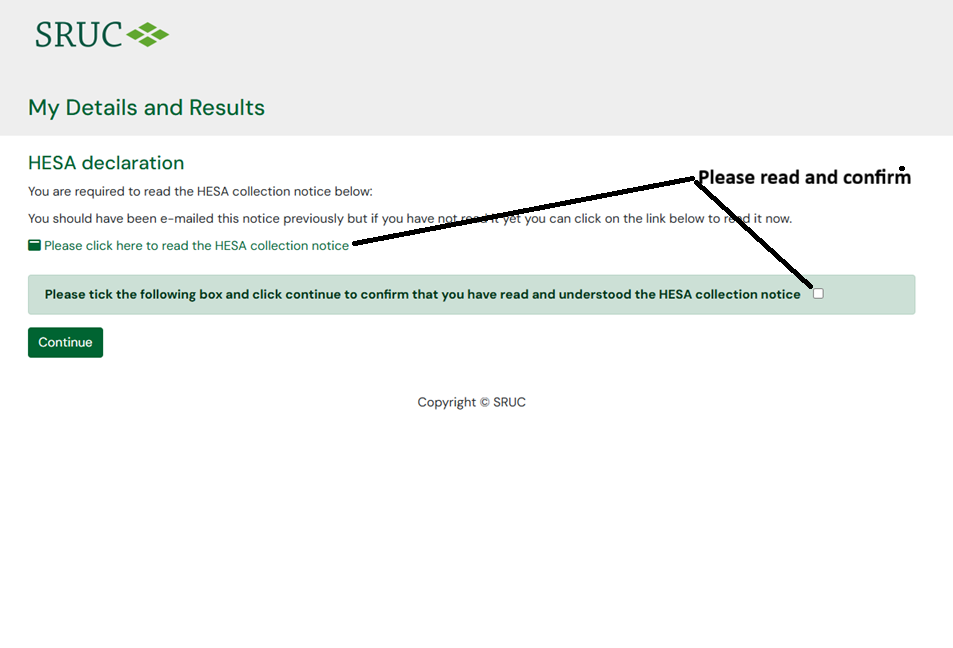
The next section of the registration process will appear differently depending on what type of student you are registering as, i.e. Higher education, International, or further education student.
-
Further Education (FE) students will be asked to fill out a FES Declaration followed by a series of additional information screens.
In Scotland, Further Education (FE) generally refers to education and training undertaken after secondary or high school but below degree level.
It is primarily delivered by Scotland's colleges and includes:
-
National Qualifications (NQs)
-
Highers and Advanced Highers (in some college settings)
-
National Certificates (NCs)
-
Higher National Certificates (HNCs)
-
Higher National Diplomas (HNDs)
-
Vocational and professional qualifications
-
Apprenticeship-related learning
Adult and community learning programmes
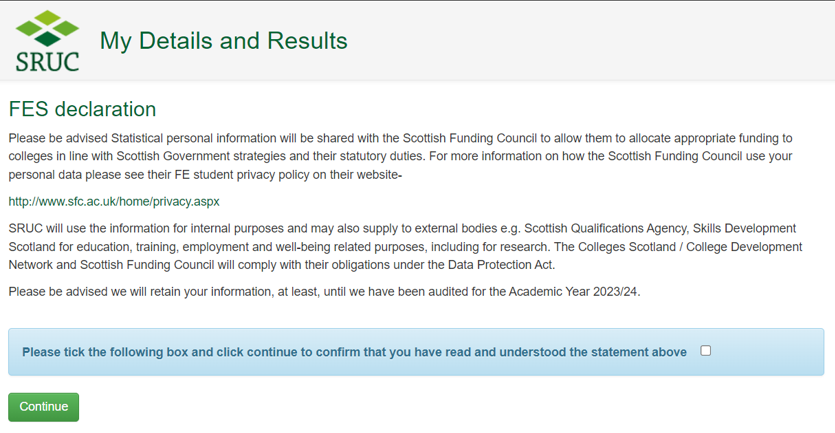
Once you have filled out your HESA or FES declaration you will have to fill out a number of pages of forms asking for personal and important information that will help SRUC and Scottish Education authorities to process your registration.
Some of the information you will be asked to submit is straightforward such as your name and address. Other information is more in depth or classified as “protected characteristics”.
The data you provide contributes to
Below we list the meanings of some of these questions that we ask for during your registration. In some cases we provide definitions from Protected characteristics | EHRC
Age: A person belonging to a particular age (for example 32 year olds) or range of ages (for example 18 to 30 year olds). See our guidance on age discrimination
Sex: Sex discrimination | EHRC
Gender reassignment (trans): Where a person undergoes, or proposes to undergo, a process for the purpose of reassigning their sex. See our guidance on gender reassignment discrimination.
Disability: A person has a disability if she or he has a physical or mental impairment which has a substantial and long-term adverse effect on that person's ability to carry out normal day-to-day activities. See our guidance on disability discrimination.
Race or ethnic group: A race or ethnic group is a group of people defined by their colour, nationality (including citizenship) ethnicity or national origins. A racial group can be made up of more than one distinct racial group, such as Black British. See our advice and guidance on race discrimination.
Religion or Belief: Religion refers to any religion, including a lack of religion. Belief refers to any religious or philosophical belief and includes a lack of belief. Generally, a belief should affect your life choices or the way you live for it to be included in the definition. See our guidance on religion or belief discrimination.
Sexual Orientation: Whether a person's sexual attraction is towards their own sex, the opposite sex or to both sexes. See our advice and guidance on sexual orientation discrimination.
Emergency Contact: SRUC cares about its students. We need to be able to contact someone close to you in the event that you become mentally or physically unwell.
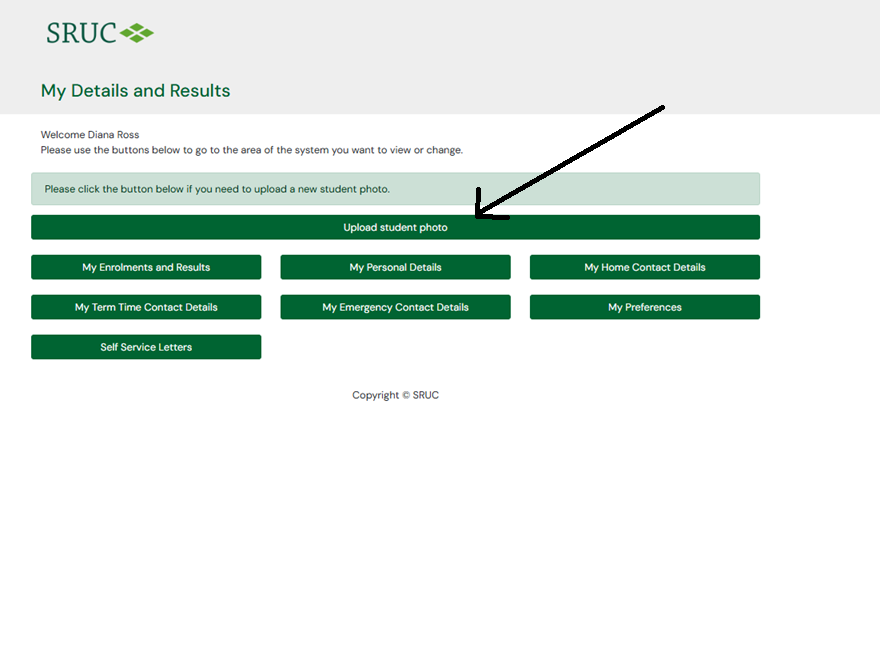
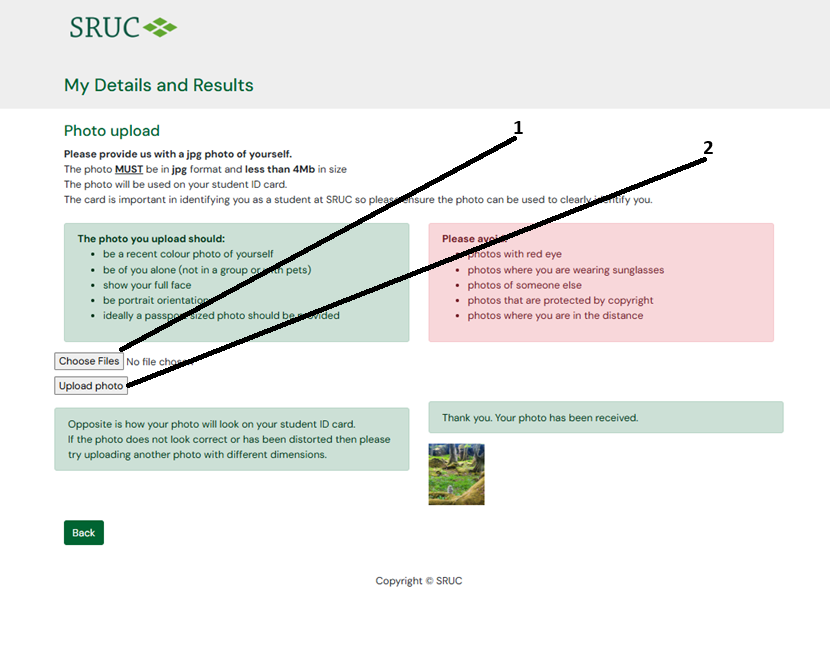
When you have completed filling out the registration forms, it is now time to upload your student photo. Click on “Upload student photo”
To upload your photograph, please read the guidelines and then “Choose File” followed by “Upload photo”.
After setting up your @sruc.ac.uk account STOP and Wait 24 hours
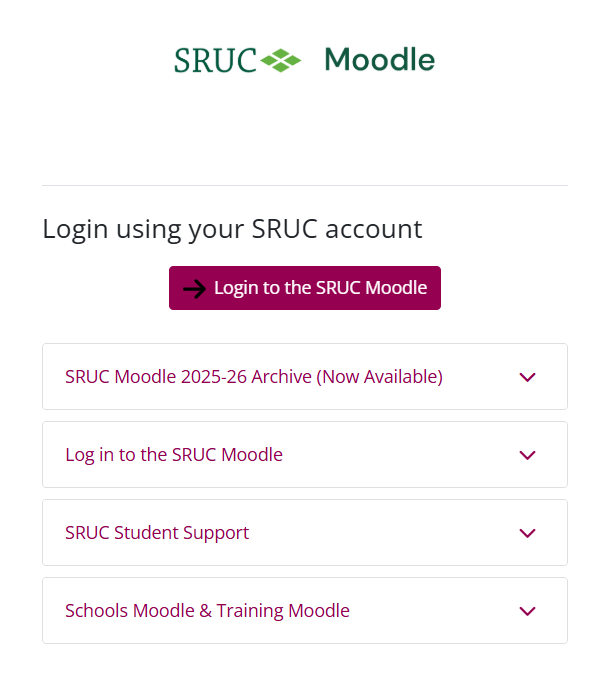
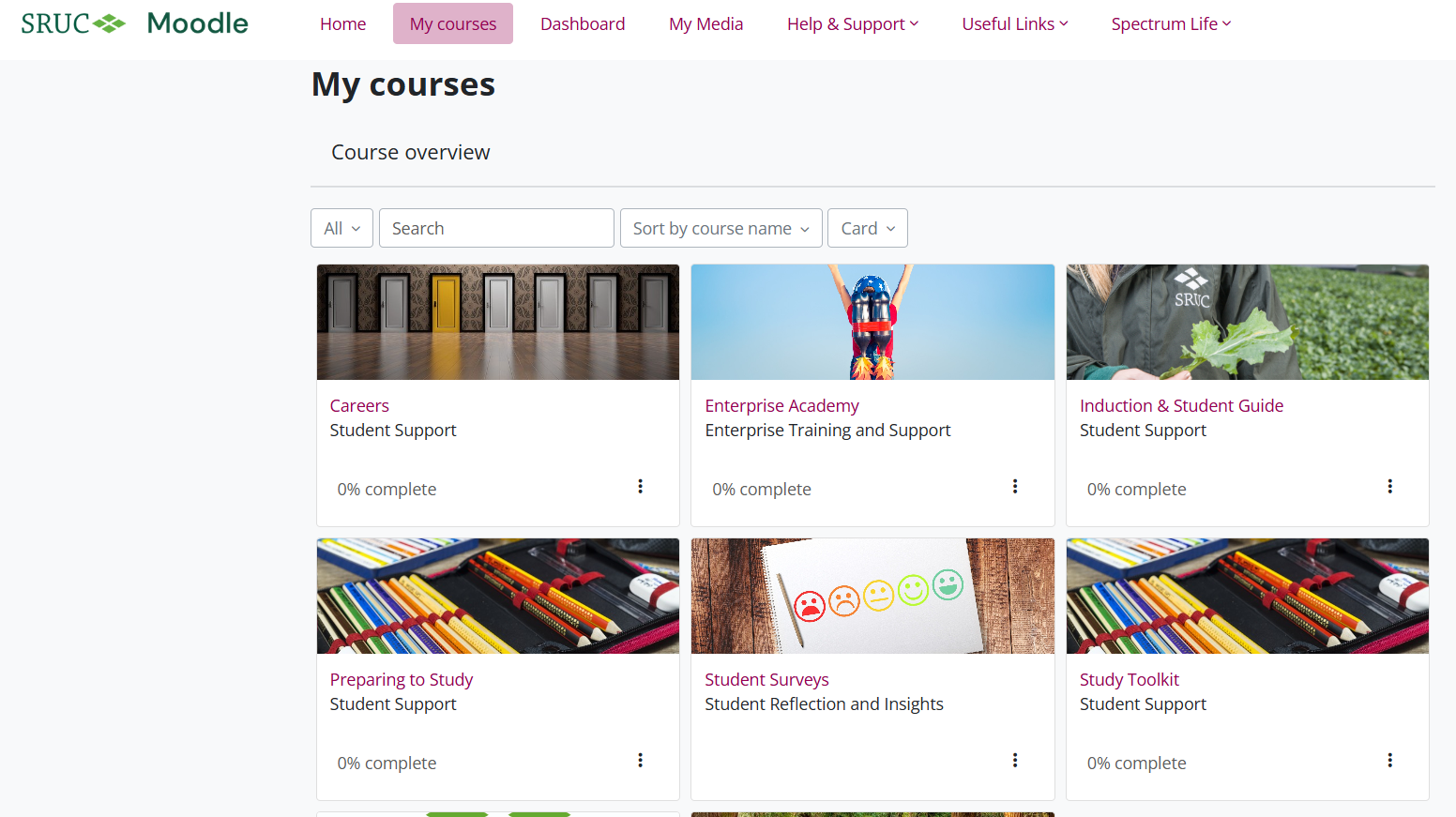
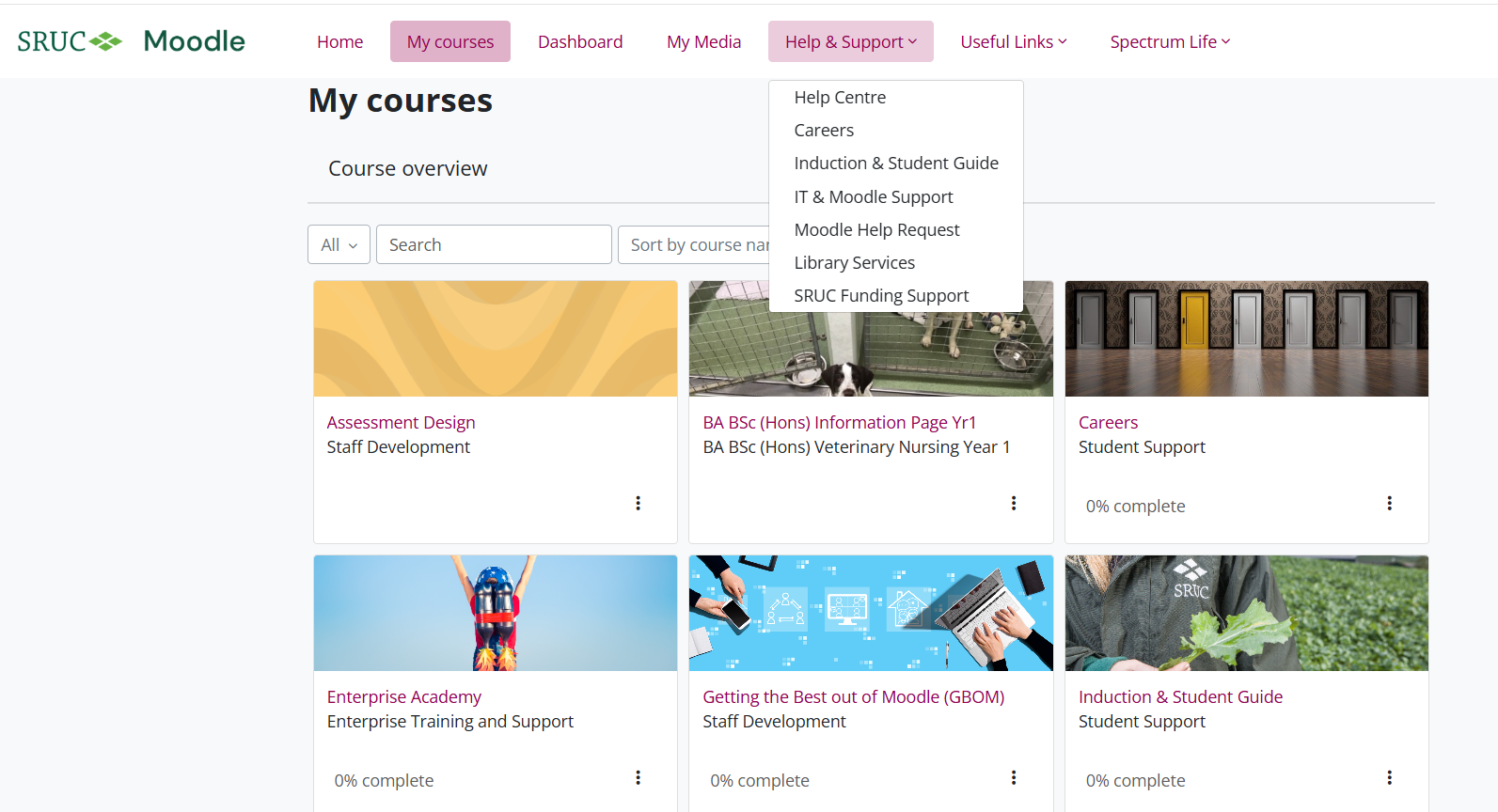
Once you receive your username and password some of the SRUC systems will take 24 hours (or 72 hours if you registered over the weekend) to update and allow you to login.
Your Microsoft Office account will likely work straight away but your Moodle access will need time to update.
Password Reset
If you've forgotten your password, you can reset it yourself using your phone or an alternative email address.
If you have a SRUC.ac.uk student account, you can reset your password yourself. But, you can only do this if you set up your self-service details. If you have not set this up, you will need to contact IT to have your password reset. (You will need to answer security questions for us to reset this for you)
If you are already set up with your SRUC.ac.uk account you can access the password reset help guide here
If you can't access your SRUC.ac.uk account and require a password reset, then please contact Ithelp@sruc.ac.uk or telephone (+44)131 535 4444








 Read more


